
In many distributorships, inventory isn't just assigned to a single person—it’s a shared resource. Whether you have a central warehouse, a shared bin at a hospital, or reps frequently swapping trunk stock, Pooled Inventory (also known as Shared Inventory) is designed to cut down on the administrative burden of constant field transfers.
When enabled, this feature allows all sales reps within a distributor group to access and use inventory held in the Distributor’s custody as if it were their own.
How to Enable Pooled Inventory (Admin Guide)
To enable pooling, an administrator must activate the specific toggle within the Distributor User's profile.
-
Navigate to the Users section in the main navigation.
-
Select the Distributor User who will act as the "hub" for the inventory pool
-
Scroll down to the Assigned Users section.
-
Ensure all relevant Sales Users are added to the Assigned Users list for this Distributor.
-
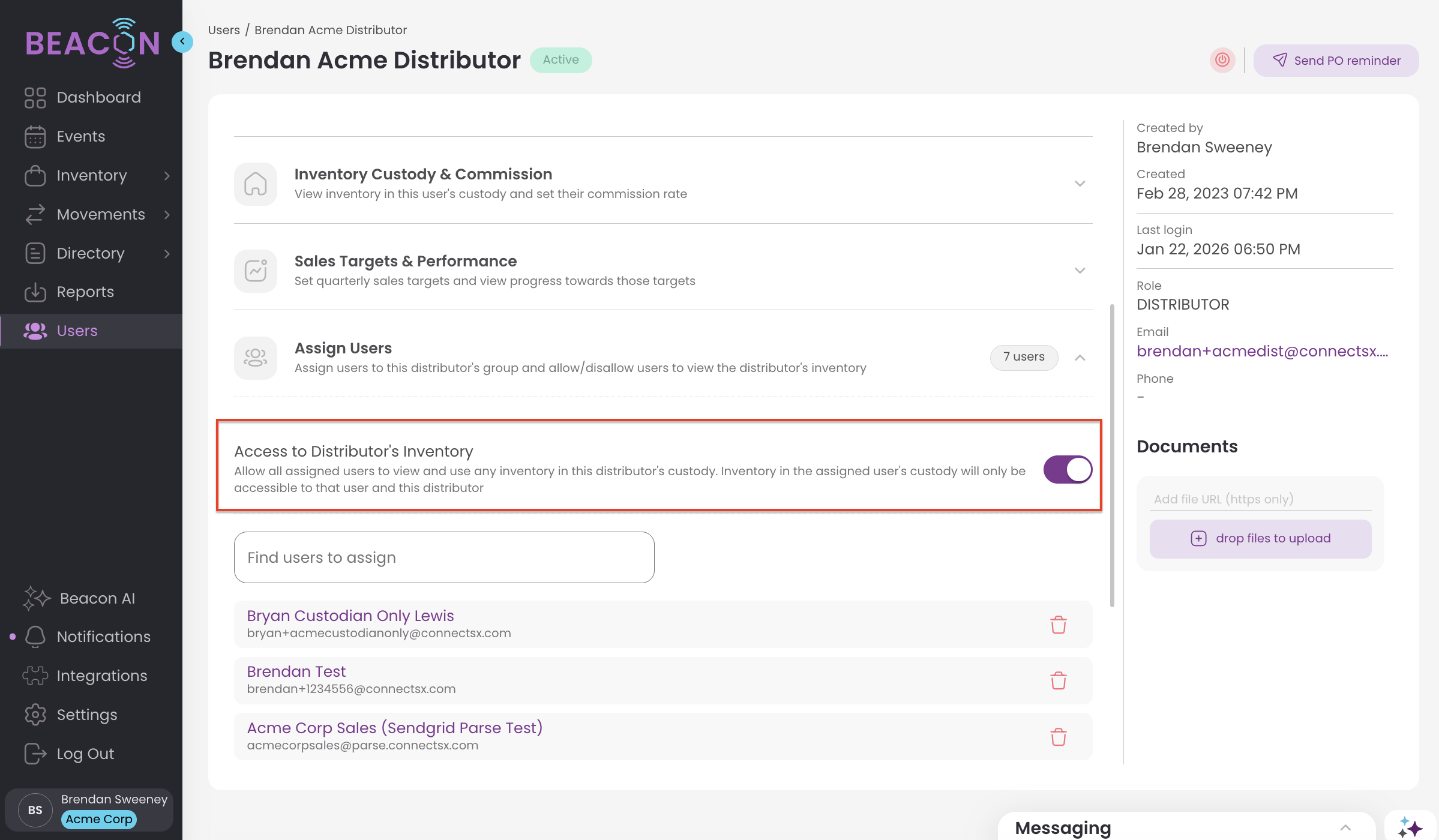
Locate the setting: Access Distributor's Inventory under the Assigned Users section.
-
Click the toggle so it turns purple (On).
Note: Each distributor group can only have one "Distributor" role user. This user acts as the primary custodian for the shared pool.
Understanding "Custody" in a Pooled Environment
Once pooling is active, the way inventory is displayed changes slightly to help users distinguish between their personal stock and the shared pool.
1. The Distributor's Perspective
As a Distributor, you have "admin-lite" powers over your assigned reps. You can see all inventory in their custody, transfer items on their behalf, and even edit their events.
Pro Tip: Use the Custody Filter in the inventory screen to quickly toggle between your warehouse stock and your reps' individual custody trunk stock.
2. The Sales Rep's Perspective
Sales reps now see a broader range of inventory but must be diligent about using the Custody Filter during a case to ensure they are pulling from the correct "bucket".
| Filter Option | What the Rep Sees |
| My Custody |
Only items physically transferred to that specific rep.
|
| Shared by Distributor |
Only items held in the Distributor User's custody.
|
| Both |
A combined view of personal and shared stock.
|
Visual Indicator: In the "Mark Used Inventory" screen, items in the Distributor’s custody will appear with a Red Custody label, while items in the Rep’s custody appear with a Black Custody label.
Best Practices for Pooling
Transfer to the Hub: For the most streamlined workflow, we recommend transferring all new inventory directly to the Distributor User. This ensures it is immediately available to every rep in the group without extra paperwork.
Stocking Orders: When selling inventory to a facility as "Facility Stock," perform the stocking order as the Distributor. This allows any rep in the group to "use" that facility stock later, regardless of who is covering the case.
Communication: Use the @mention feature in event comments to notify the Distributor when shared pool levels are running low at a specific facility