
Supplier orders are a great way of using Inventory Requests to track and manage inventory reorders/purchase orders for newly built inventory.
To get details about how many orders were placed or how much was ordered in a given timeframe, check out our reporting section using the steps below:
1. Navigate to the Reports page
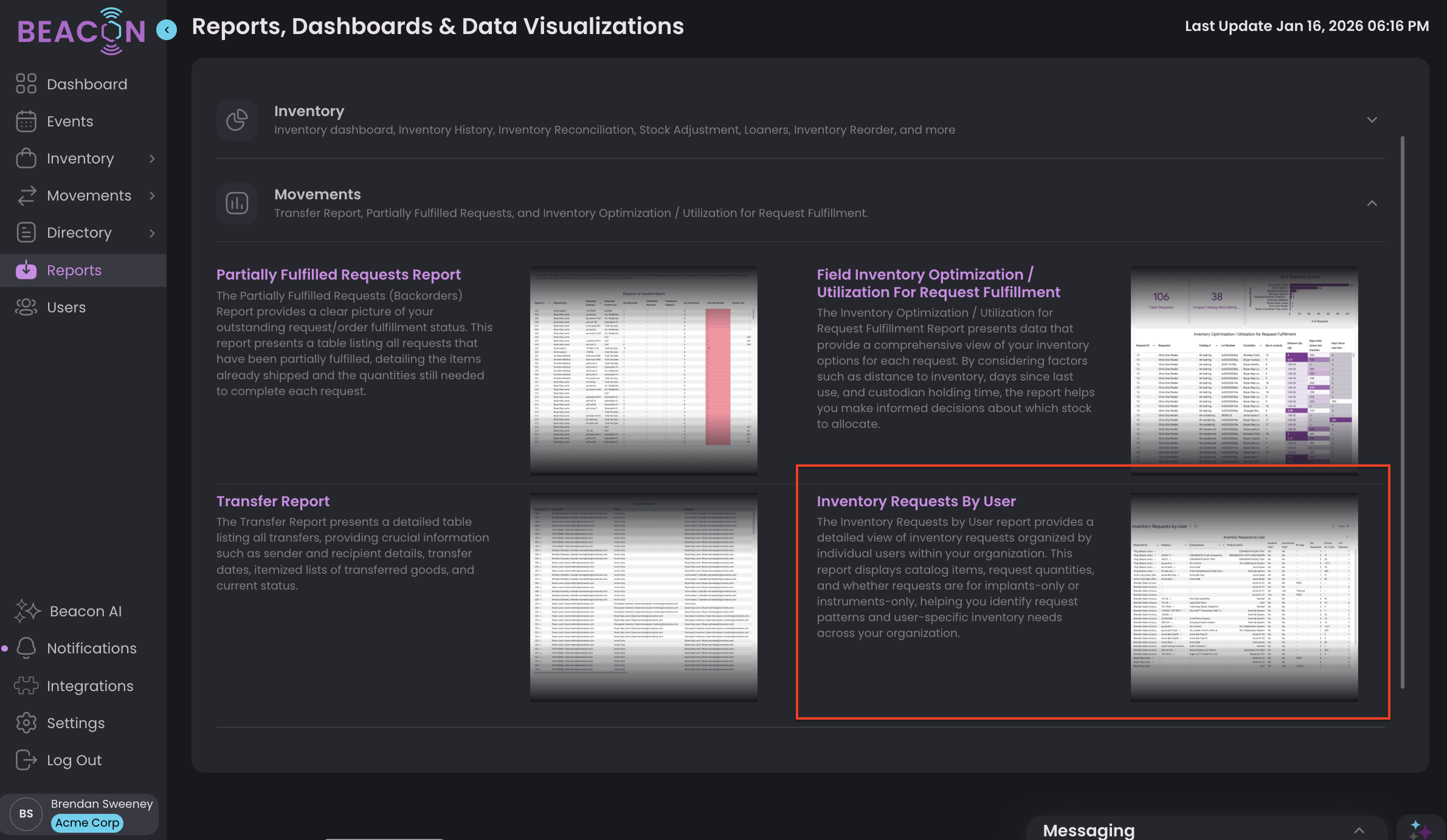
2. Scroll down to the Movements Section
3. Open the "Inventory Requests by User Report"
4. Next, select the following filters:
- Requester(s): Org (Master User)
- This will filter to only show requests placed by your Organization of suppliers (supplier orders/purchase orders)
- Request Date: Is in the year XXXX
- This will determine the date range of your reporting period. Use the "Range" option to select a specific date range using a start date and end date or select one of the simpler options such as "is in the year 2025".
- Manufacturer: is XYZ Supplier
- This allows you to filter your requests by the supplier/vendor/manufacturer you ordered from
Then click the purple refresh button to apply the filters.
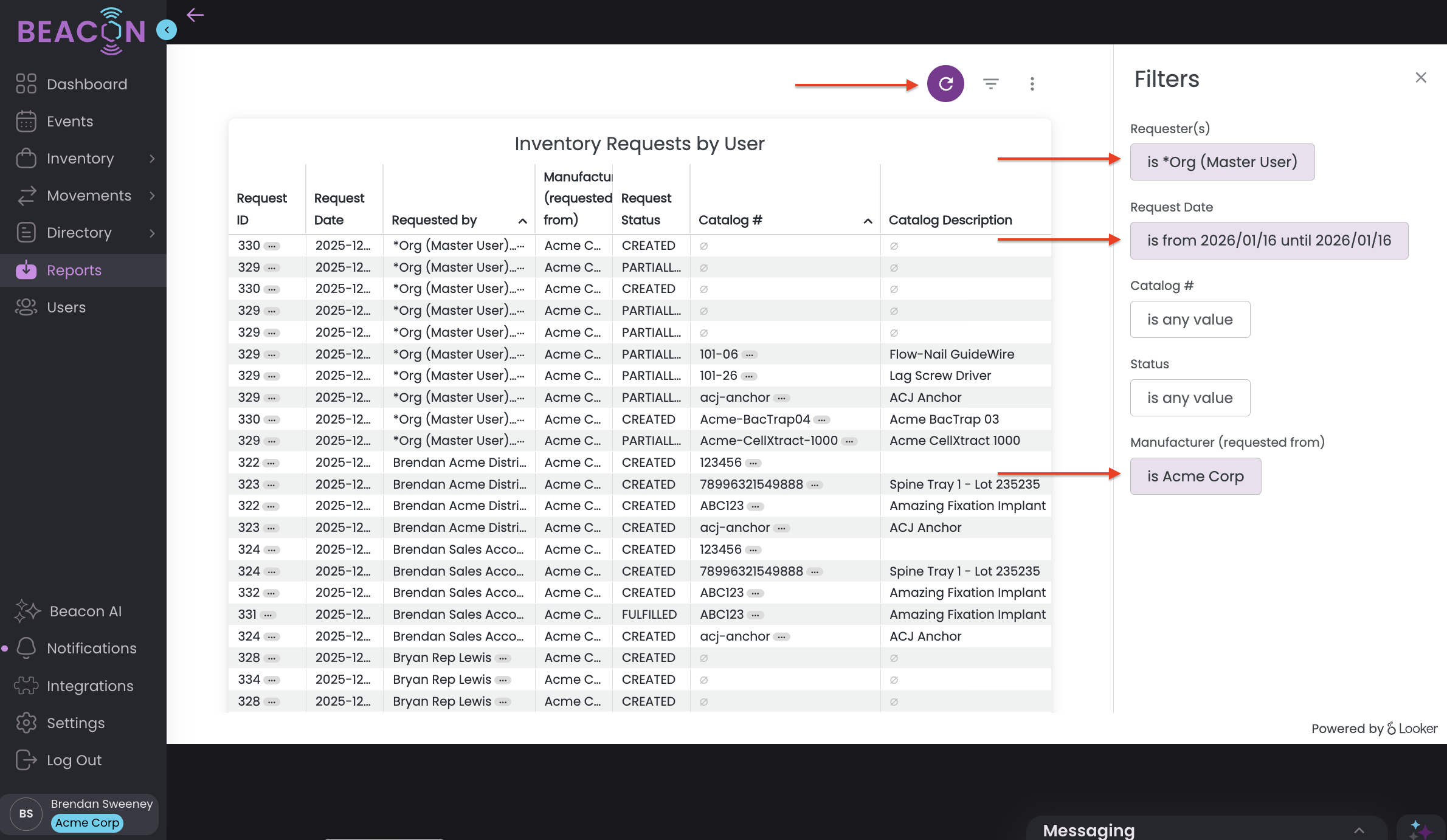
5. This report shows all of the items requested within those parameters you set, meaning each request is listed potentially multiple times (once for each item # on the request), but we can use this to get the info you're looking for. Our recommendation would be to download this report and use the "Remove Duplicates" function in Excel to narrow it down to one row per Request ID, then you can get a count of how many requests there are.
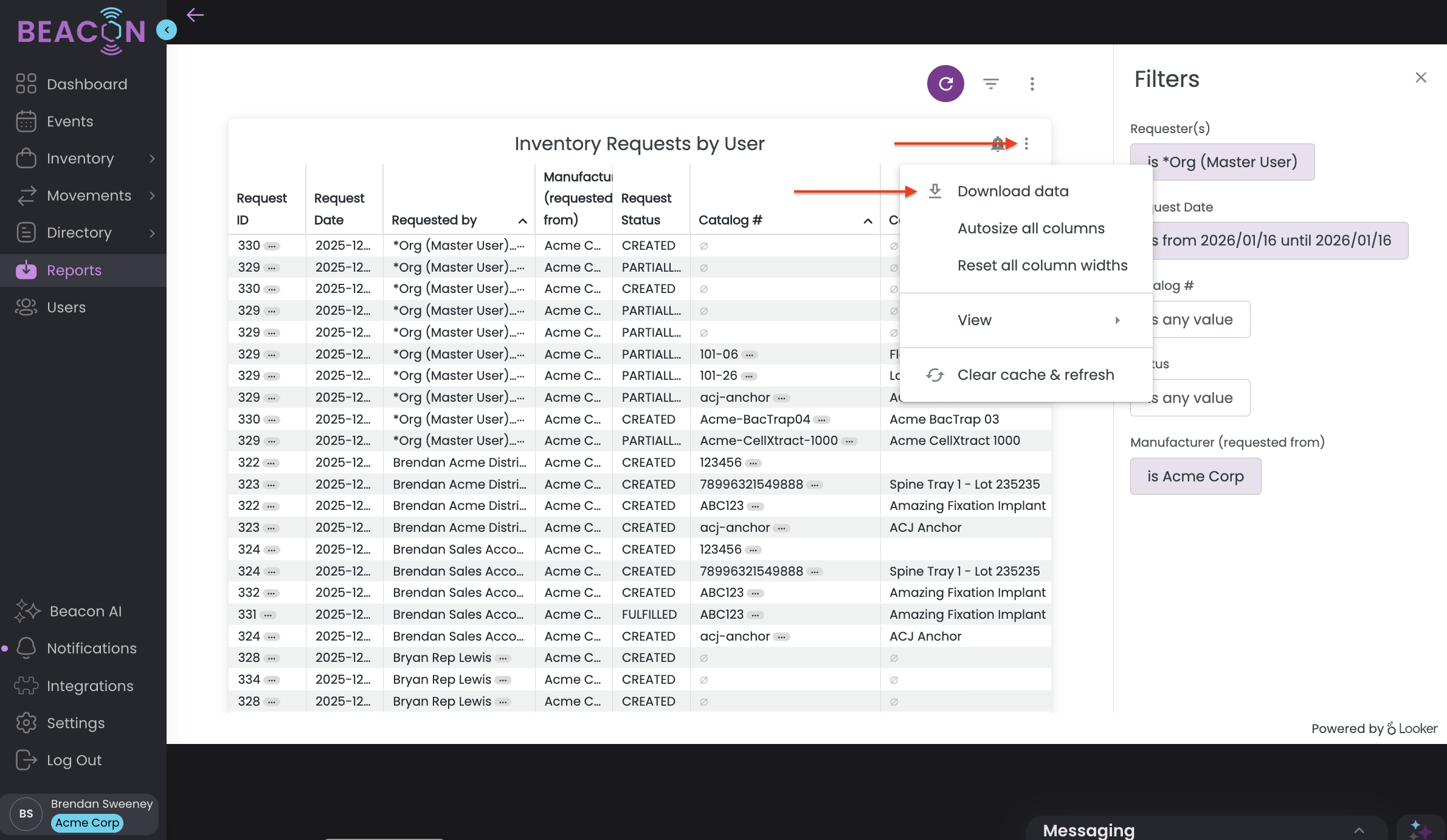
6. Export the report by clicking on the Tile Actions menu, by hovering over the top right corner of the chart. Then click "Download Data".
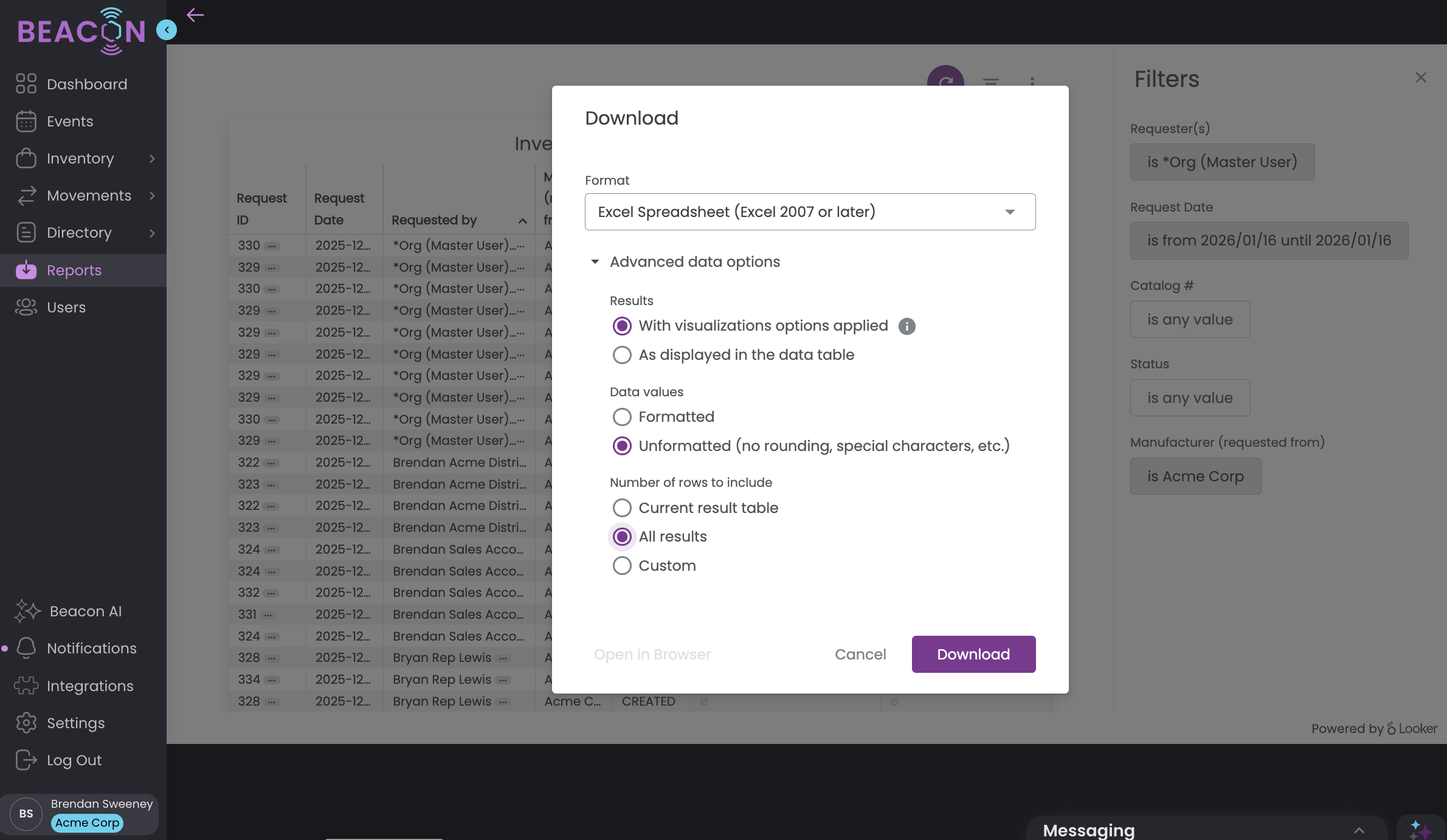
7. Select your file type and open the advanced data options
8. Select the following download settings:
8. Once you've downloaded your file, open it up in Excel.
9. Click on the Remove Duplicates button. In a Mac version of Excel this is located in the Data toolbar.
10. Select the column to remove duplicates based on the "Request ID" column
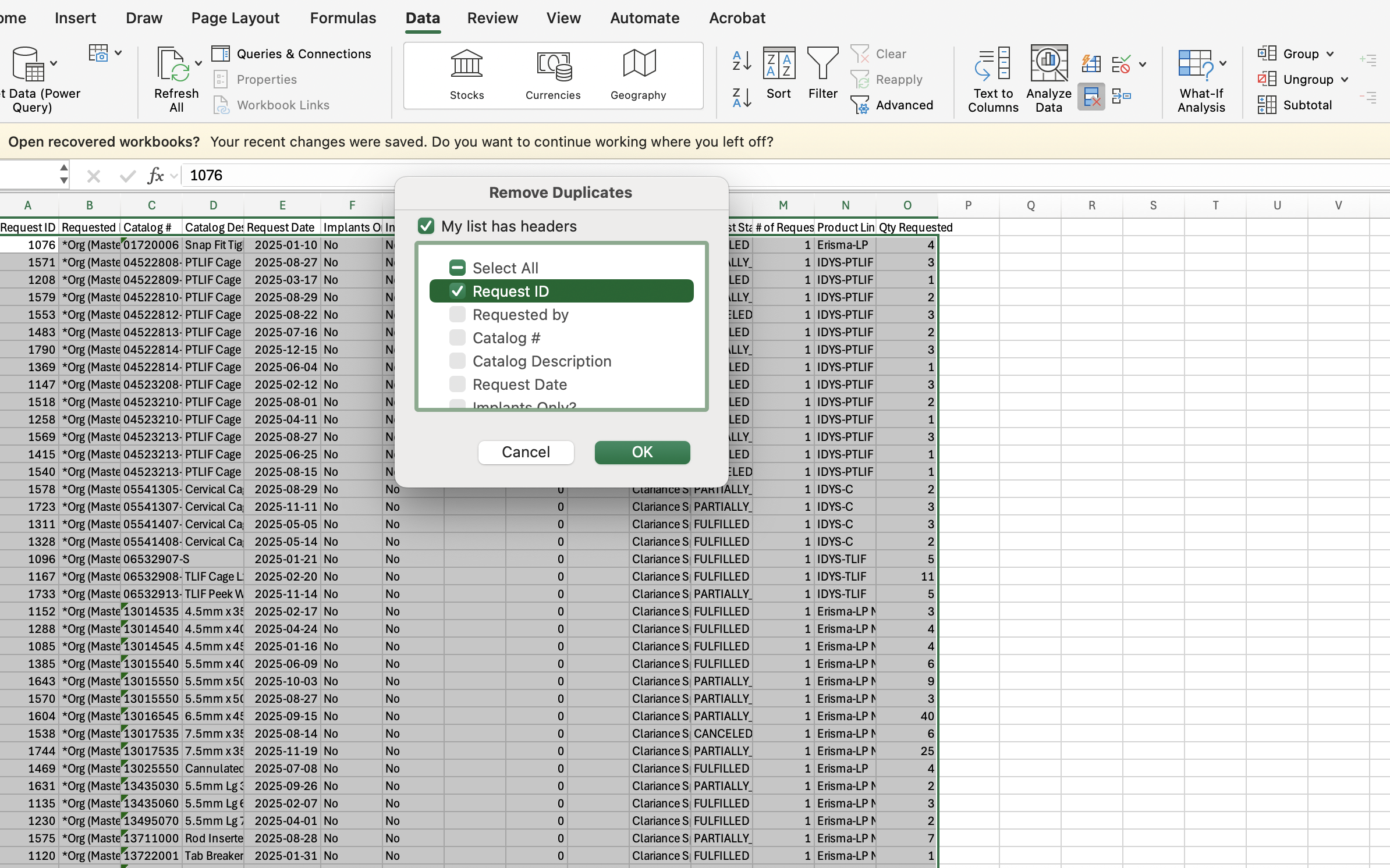
11. Now you'll have a list of all of the requests by request ID (any duplicates of the request ID will be gone) and you can just total a count for the column to get the amount of requests sent in the time period.