
When loaned inventory is returned, it may not always need to go back to the organization. You may now designate a "return to custodian" when transferring inventory to the field.
Designate the Return to Custodian on the Transfer
1. Create your transfer and select your inventory.
2. Next, designate the transfer consignment status as "Loaned". Inventory must receive a loaned consignment status in order to receive a "return to custodian" or set due back dates.
3. Next, on each individual item you may select a "Return to Custodian". Click the link on that item.
4. Select the custodian from the drop down.
5. If you would like to apply this return to custodian to the whole transfer, check the box below.
6. Complete the transfer.
When Ready, Initiate the Return
1. Navigate to one of two places:
- The Original Transfer Detail Screen
Select the Return Inventory option to automatically create a return transfer for all unused inventory from that transfer. 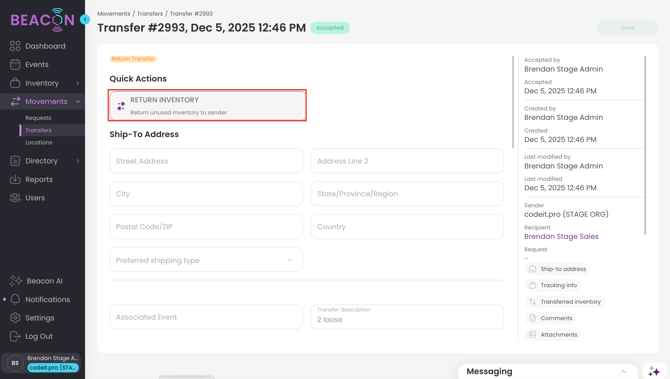
- The Inventory Detail Screen for the Loaned Inventory
You may click the Return Inventory Quick-Action toautomatically create a return transfer for all unused inventory from that transfer. 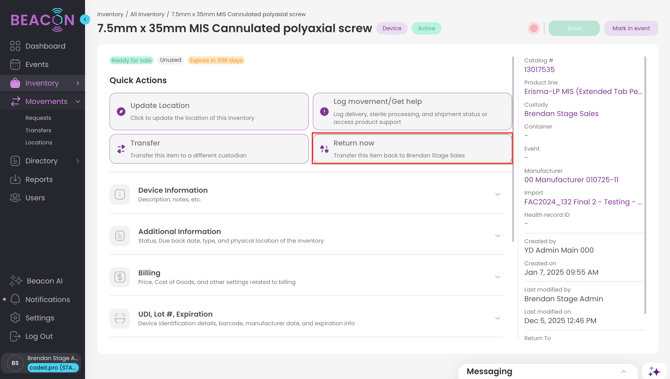
Or use the Return To section in the right hand column. 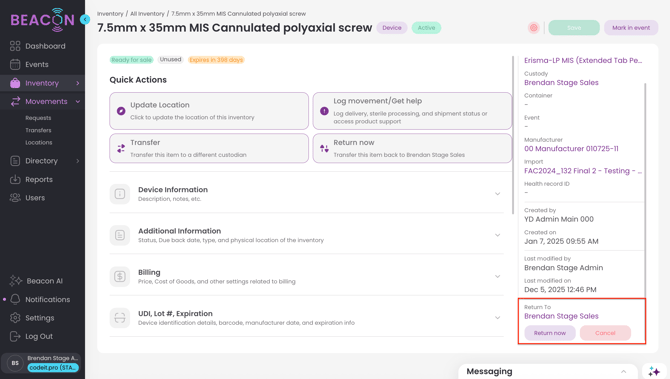
Check the box in the upper left to "Include all inventory currently in my custody with the same Return To custodian", if appropriate.
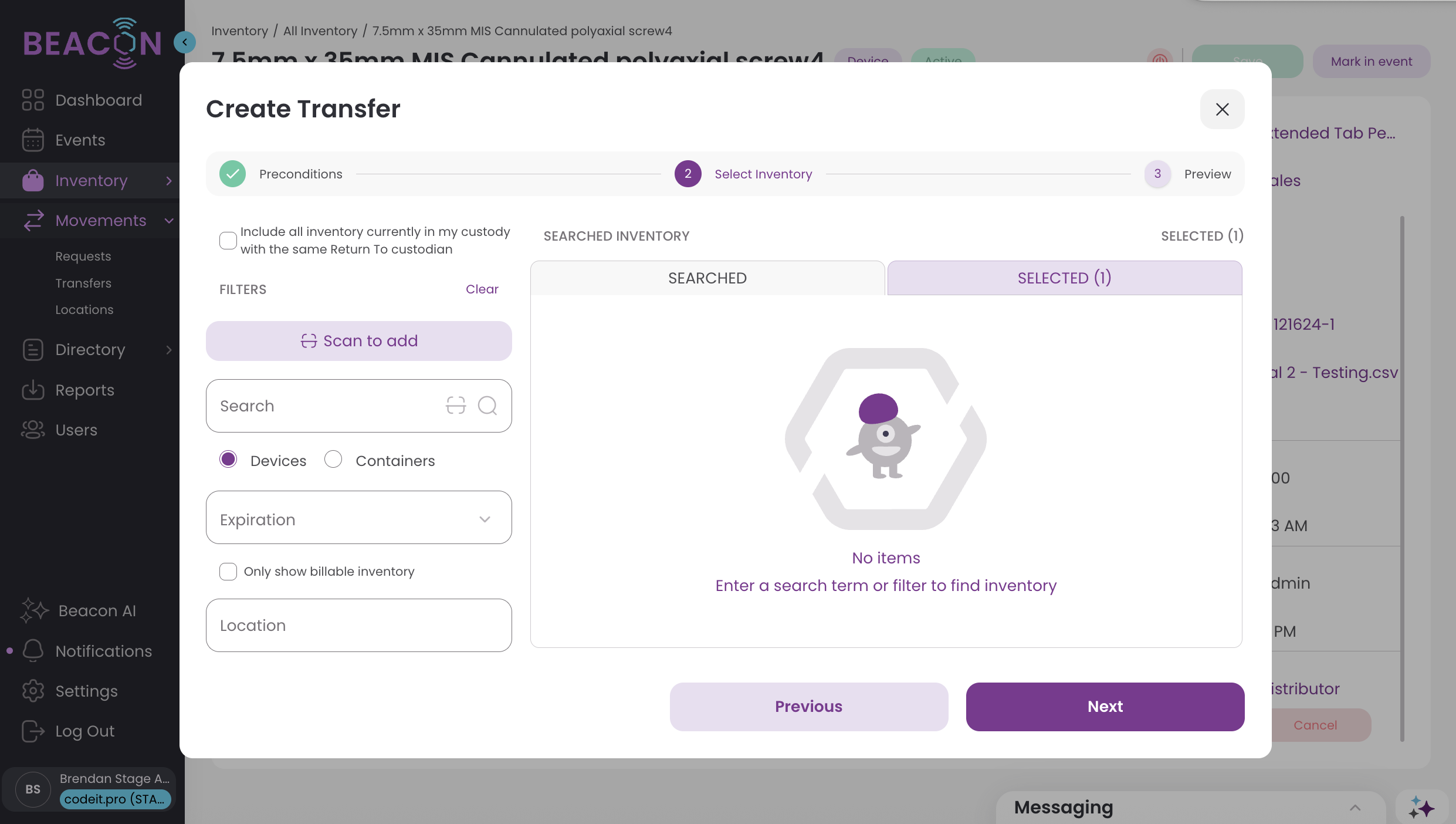
Review the transfer and make any necessary changes to the transfer as normal, then click "Create".